Adding a Promo Slider to Instant Site
March 3, 2025Showcasing Product Catalogue on your Instant Site
March 3, 2025Adding an announcement bar to the top of your site
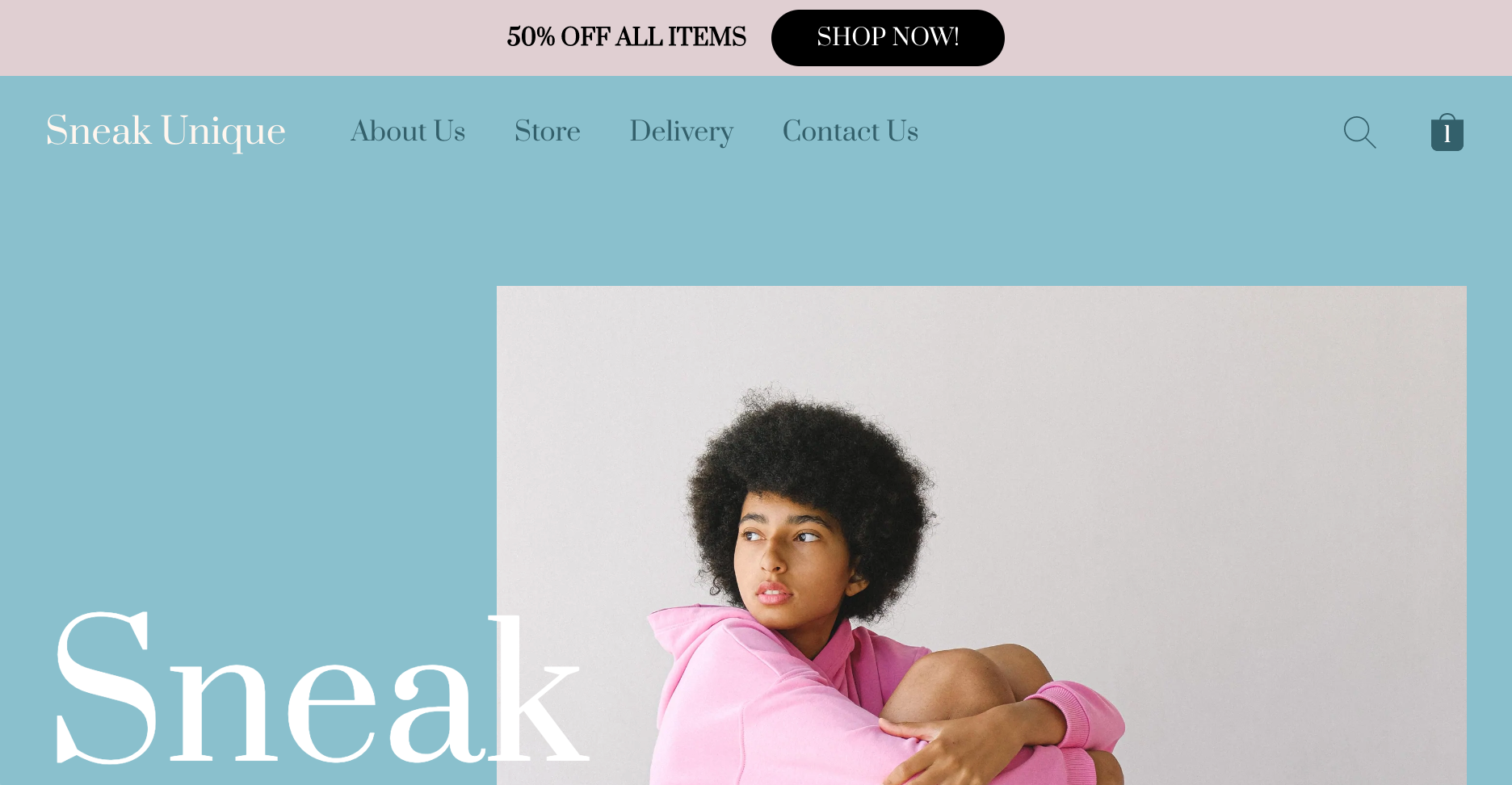
You can add one of the dedicated announcement bar sections to your Instant Site.
No matter what page you add a bar to, it will be shown at the top of each page in your store.
To add the announcement bar block:
- From your store admin, go to Website → Edit Site.
- Click Add Section, go to Announcements and click on the block you like. It will be added to your list of site blocks and opened for editing.
- On the Content tab, enter your Announcement text for the bar. You can also set up a button and link this as a call to action.
- On the Design tab, you can adjust the fonts, styles, and colours.
Adding a scrolling message to a page
To animate the website and catch the eye of customers, you can add a dynamic section with an animated text message to any page of your site. The bar will be displayed at a specific page only.
By default, scrolling messages are used for displaying reviews, but you can adjust them to highlight any promotion.
To add a scrolling message:
1. From your store admin, go to Website → Edit Site.
2. Click Add Block, go to Customer Reviews and click on the preview of the scrolling block to add it to your site and open for editing:
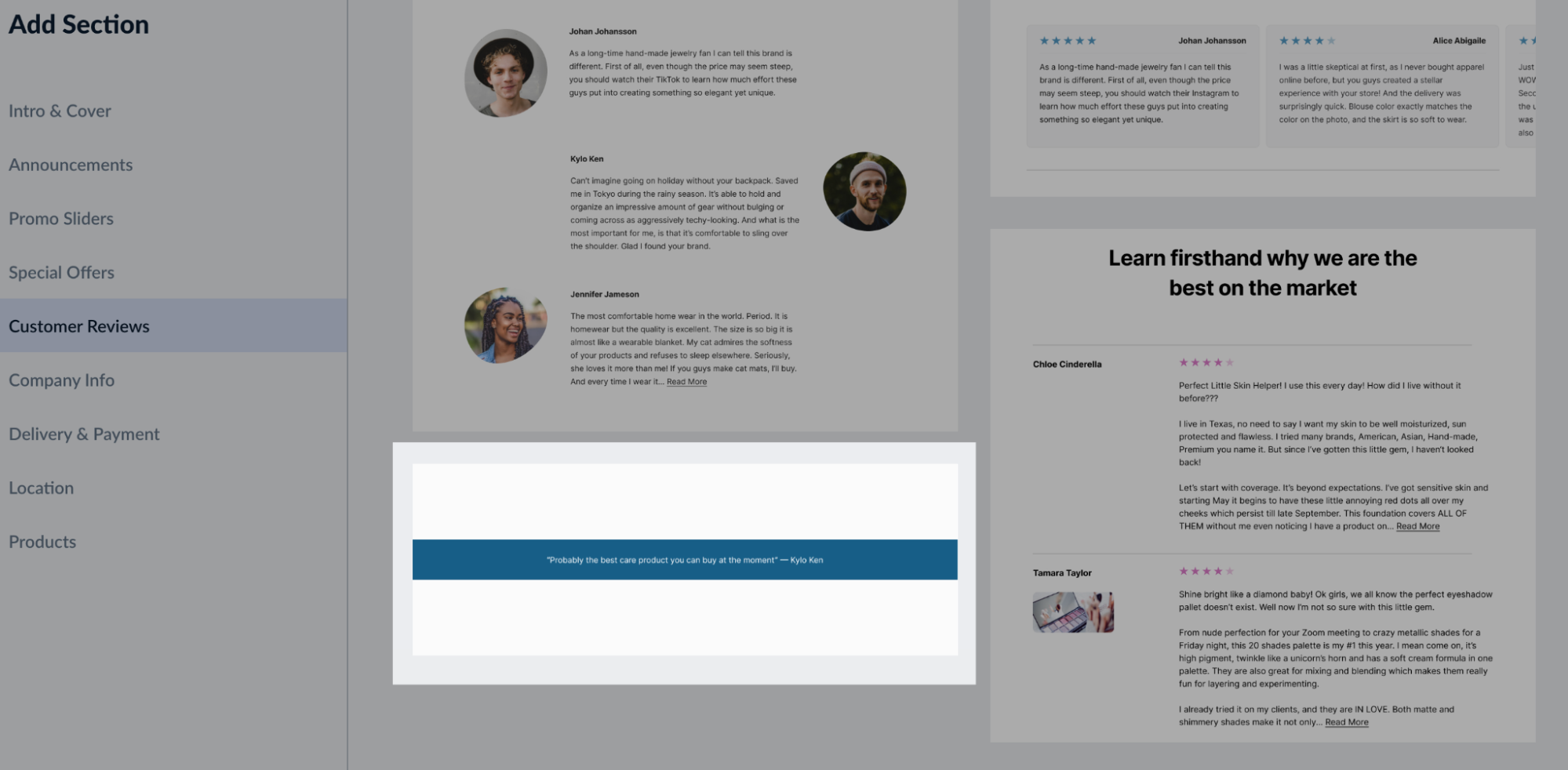
3. The section that you add will have 3 customer reviews. You can delete all but one review if you choose to have one message recurring continously. For that, click on the review in the editor on the left, then click Delete review at the bottom.
4. Click on the remaining review and clear the Author field, then enter the text of your message in the Review text
5. Click Back and switch to the Design tab to change font, its size, and style of your message, as well as the text and background color.
6. (Optional) Click Back, then drag and drop the section to reposition it on your website.
Click Publish.
Examples: